Current version v2.2.92 · Mac, Windows, Android, and Linux are free
Developer: Shadow Launch Technology Limited
App ID: 932747118
U.S. store: $2.99 · One-time purchase
For iPhone and iPad
iPhone and iPad are a one-time purchase on the App Store. Mac, Windows, Android, and Linux are free, and this site hosts the installers. For iPhone and iPad, check the store region, then the developer, icon, and app ID.
01 / Store and Account Region
Check which store you're using
Shadowrocket isn't available in the mainland China store. Your Apple ID country or region determines which store you see—not your device's physical location. The button on this page links to the U.S. listing, but opening it won't change your account region or purchase eligibility.
To check: Settings → Apple ID → Media & Purchases → View Account → Country/Region. You may need to authenticate first, and menu labels or locations can vary by system version. Check the account actually used for Media & Purchases, not just the account name shown at the top of your device.
Settings → Apple ID → Media & Purchases
View Account → Country/Region
Return to the App Store → Open the product page → Check purchase status
To find Apple's official instructions for changing your region, go to Country/Region and select Change Country or Region. Account balance, active subscriptions, Family Sharing status, and payment methods may affect the process. These are the steps to reach the setting; not every account can change regions immediately. If you encounter a restriction, read the system message and don't repeatedly submit the same request.
If Shadowrocket still doesn't appear after checking your region, review Content & Privacy Restrictions and age-rating limits in Screen Time. The product page gives a clearer indication of availability than search results alone. If the page says the app is unavailable, requests account details, or reports an incompatibility, follow the relevant instructions rather than assuming the client is malfunctioning.
ALL PLATFORMS
Download for this device
Current version v2.2.92. iPhone and iPad are a one-time App Store purchase. Mac, Windows, Android, and Linux are free. The card for this device is listed first.
iPhone / iPad
$2.99, paid once, on the App Store. iOS / iPadOS 13.0 or later. If the mainland China store cannot find it, use an Apple ID from a region where it is listed, such as the United States. Developer checks and restore steps are further down this page.
Free. macOS 12 or later. Choose Apple Silicon on an M-series Mac and Intel on an Intel Mac. If you are unsure, open About This Mac and read Chip or Processor.
These installers are not code-signed. The first block is expected. Follow the system wording below.
Platform
System message
What to do
Windows
“Windows protected your PC”
Choose More info, then Run anyway.
Mac
“Shadowrocket cannot be opened” or the developer cannot be verified
Move it into Applications, then choose Open Anyway under System Settings → Privacy & Security.
Mac
“Shadowrocket is damaged and can’t be opened”
In Terminal, run xattr -cr /Applications/Shadowrocket.app and open it again.
Android
Install blocked for your security
Allow this browser in Settings, then return and continue.
Linux
The AppImage does nothing when double-clicked
Run chmod +x Shadowrocket-*.AppImage. For .deb, use sudo apt install ./Shadowrocket-*.deb.
Mac, Windows, Android, and Linux are free. A cracked or modified package from another site is not an official release. An App Store listing with this name priced at free is a counterfeit. The iPhone / iPad app is $2.99, paid once.
02 / Verify the App Store Listing
Check three details—not just the name
“Little Rocket” is an informal nickname. When purchasing, rely on the Shadowrocket product page, not search ranking, similar names, or a single screenshot.
Developer, icon, and app ID
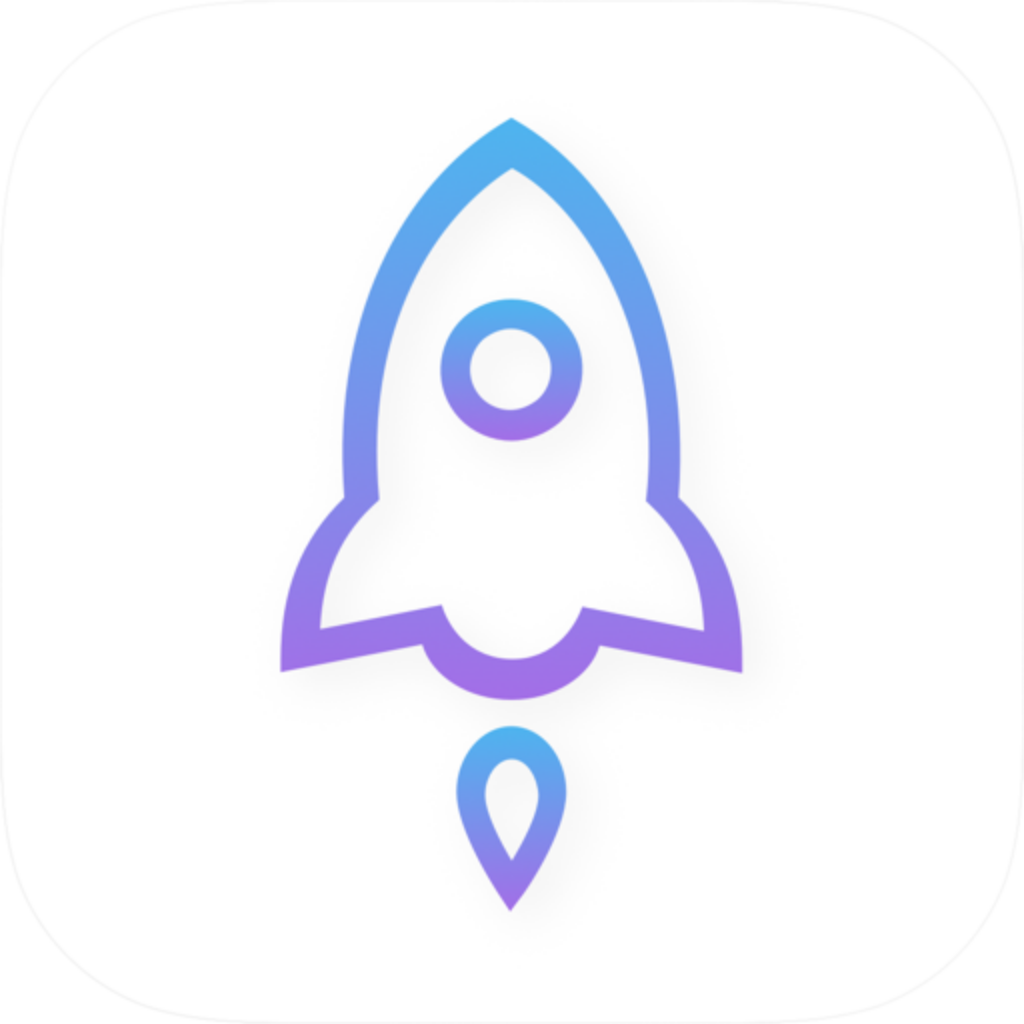
The developer should be Shadow Launch Technology Limited. Expand the relevant details on the App Store listing and verify the developer's full name instead of checking only the title. The app icon should match the official icon shown here: a blue-and-purple-outlined rocket on a white background. Similar-looking artwork is only a warning sign, not a substitute for checking the developer.
The app ID is 932747118, and the product page URL contains id932747118. This is an important way to distinguish apps with similar names. After confirming the app name, check the developer and the ID in the URL. Proceed to review the price and compatibility only when all three match. If any detail differs on a page opened from search results, return to the App Store link on this page and verify again.
Promotional text or icons in the store can be imitated by similar apps, so don't rely on a matching name alone when making a purchase. Ratings, screenshot counts, and search position aren't substitutes for verifying the listing. The screenshots on this page are the developer-submitted App Store images. They help identify key interface labels but don't replace checking the product page details.
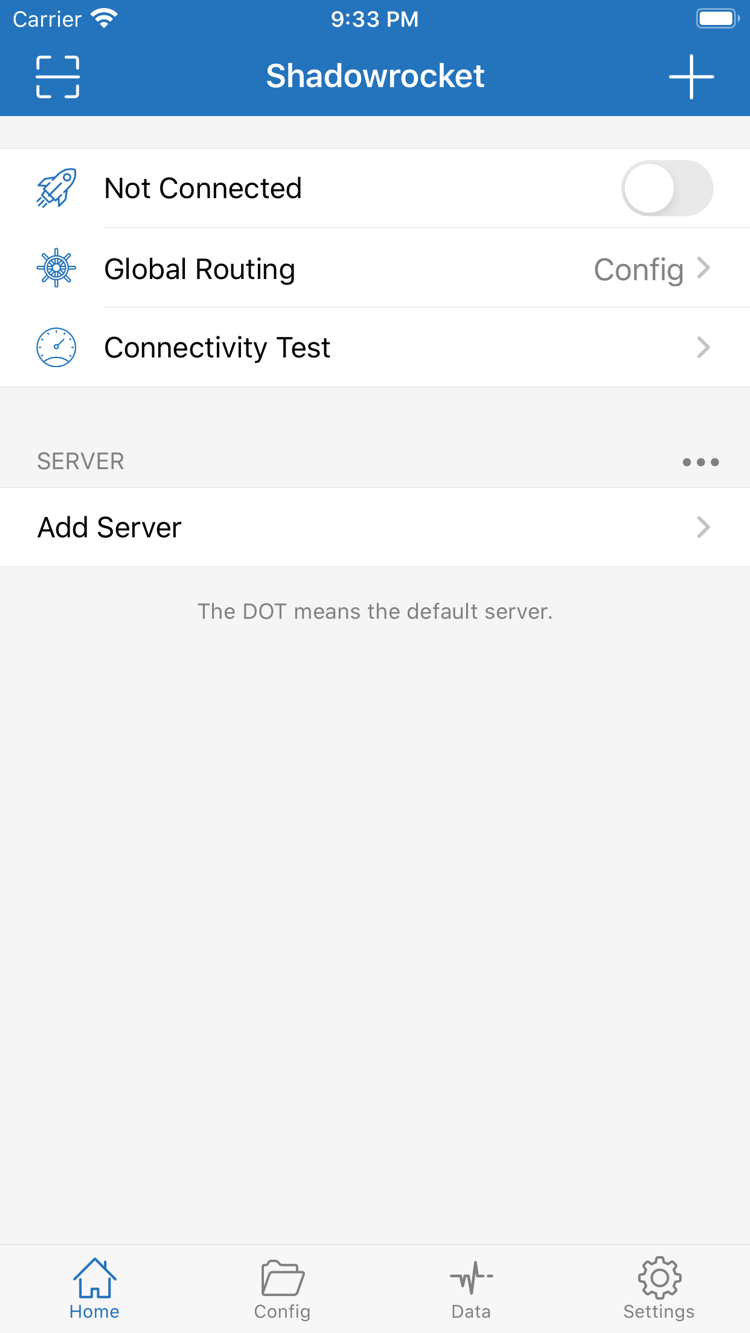
Home: Connection status appears at the top, followed by Global Routing, Connectivity Test, and the SERVER section.
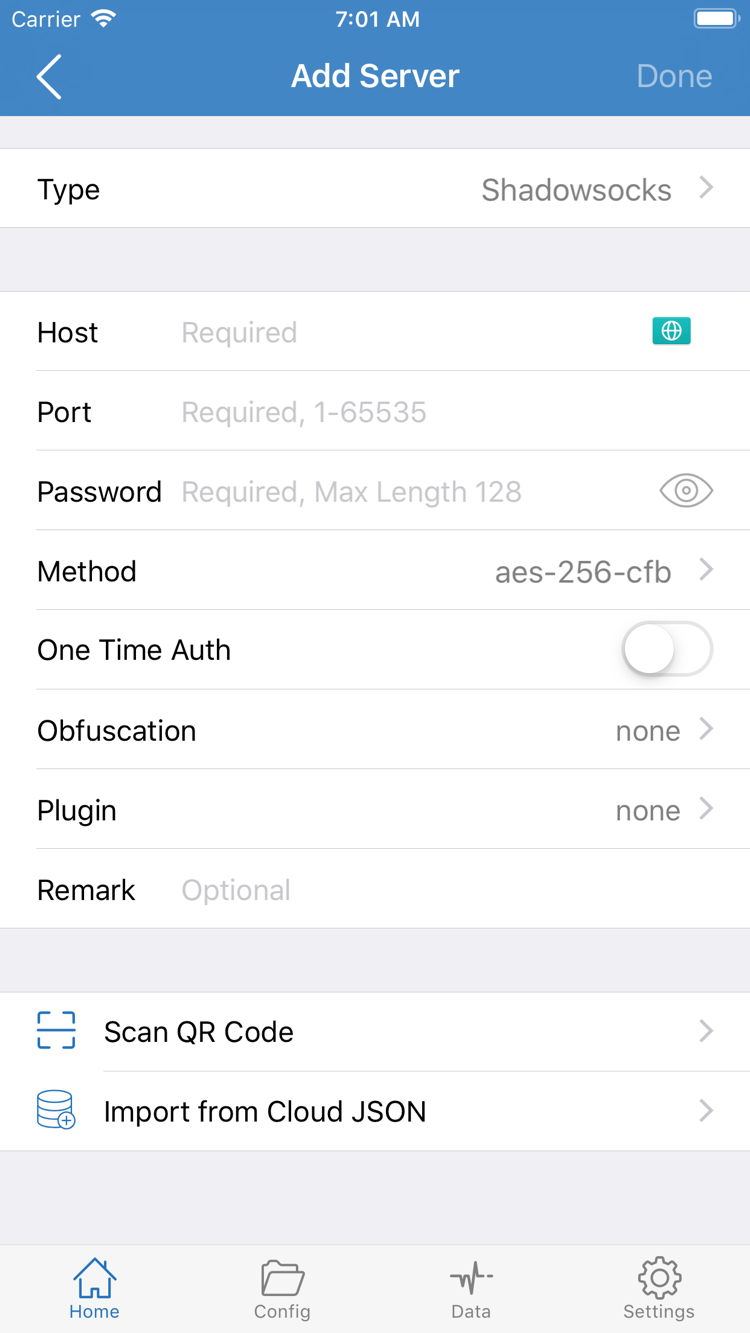
Add Server: Enter the fields for your server. The fields shown can vary depending on Type and app interface changes.
Seeing Not Connected on Home when you first open the app doesn't mean installation failed. This is expected if you haven't selected a server or started a connection. Type, Host, Port, and other fields in Add Server must come from server details you already have; the values shown in a screenshot aren't usable connection details. The interface may vary with the system language and app updates.
03 / iPhone
Purchase, installation, and first system authorization
First, confirm your purchase
Open the product page on your iPhone and check the compatibility section. Follow the system requirements shown on the App Store page. If the store says your device isn't compatible, review the specific requirements rather than relying on system version numbers in screenshots or older articles.
After confirming the developer, app ID, and price, complete the purchase and authentication through the App Store. The store handles payment; the steps shown depend on your account settings. Once downloaded, open Shadowrocket from the Home Screen or App Library. A successful purchase and a successful connection are separate steps.
If the button stays in a waiting state, check your device's network, available storage, and App Store account messages. If you were charged but installation hasn't completed, check your purchase history and download status before trying to buy again. Keep the full store message to help distinguish a payment issue from a download issue.
Authorize the VPN connection before connecting
After opening the app, first import your own subscription or enter server details you already have. When you tap the connection switch, the system may ask permission to add a VPN configuration. This authorizes the system network configuration. If you confirm that Shadowrocket initiated the request, authenticate as prompted.
After authorization, return to Home and check the connection switch and selected server. Permission to add a configuration only means the app has the required access; it doesn't confirm that the server details are correct or that the remote server is available. If you previously denied authorization, try connecting again and follow the system prompts.
For your first session, avoid changing multiple network options at once. Confirm that your existing server details have been imported, then check Global Routing. If you need traffic routed according to configuration rules, compare the Config status with the active configuration. See the Getting Started guide for the full import, connection, and verification sequence.
04 / iPad and Other Apple Devices
Check each device using the same purchase account
For iPhone and iPad
One purchase with the same Apple ID can be installed on compatible iPhone and iPad devices. On your iPad, first confirm that Media & Purchases uses the original purchase account, then look up Shadowrocket in the App Store. If the page shows a price instead of a redownload option, check the account and purchase history. Using the same cloud account on both devices doesn't necessarily mean they use the same store account.
The iPad's larger screen may change the layout of lists, navigation, and detail views, but labels such as Home, Config, and Settings can still help you find features. When a guide says to open a particular item, look for its label rather than expecting the button to be in exactly the same place as in a screenshot.
Check connection settings and system authorization separately on each device. Shadowrocket working on your iPhone doesn't mean your iPad already has the same server details. After installing, check whether your own entries appear on Home. If needed, reimport a subscription you already have or restore a configuration you saved, then confirm the selected server and Global Routing.
Mac, Apple TV, and Apple Vision
The Mac desktop app is free. Download the Apple Silicon or Intel disk image on this site. Apple TV and Apple Vision follow the compatibility list in the App Store on that device.
Don't assume that iPhone and iPad instructions apply in the same way on other devices. First check whether the app is available on your target device, then follow the interface shown there. The first-authorization and import instructions on this page focus on iPhone and iPad and don't promise an identical layout on other devices.
05 / Restore on a New Device or Reinstall
Restore the purchase, then restore your connection details
Your app purchase history and personal configuration are separate. First, let the store recognize your original purchase; then check subscriptions, servers, and rules on the new device.
Redownload from your purchased items
On your new device, sign in to Media & Purchases with the Apple ID used for the original purchase. Then go to App Store → Account → Purchased, search for Shadowrocket, and download it again. Depending on your system, the entry may be labeled Apps or My Apps. A valid purchase on the original account can usually be restored without paying again.
If Shadowrocket isn't in your purchased list, first check which account was used for the purchase. Then look for hidden purchases and check whether the account region has changed. Signing in to the device doesn't mean the original purchase belongs to the current store account. Confirm which account owns the purchase before deciding whether to address the account, store availability, or download status.
Check your personal configuration again on the new device
After installation, check the server list on Home and your configurations in Config. If they weren't restored automatically, use details you've saved to reimport an existing subscription or enter your server information. A purchase record confirms the right to use the app; it doesn't prove that your personal connection details were backed up.
Before erasing data from your old device, make sure you can retrieve your subscription URL, server parameters, and any required configuration. Subscription URLs may contain access credentials; don't share them in public screenshots, comments, or support requests. After transferring your details, check the selected server, Global Routing, On Demand, and system authorization one by one. Don't assume the new device is verified just because the old one worked.
Check the App Store listing for Family Sharing
Family Sharing eligibility depends on the App Store listing and what your Apple account shows. Restoring a purchase on your own devices with the same account doesn't mean every family member automatically gets the same access. If the store asks you to purchase the app, check your Family Sharing purchase settings and the app's eligibility before proceeding.
06 / Price and Purchase
What the one-time payment covers
U.S. store reference price: $2.99
Shadowrocket is a one-time purchase, not a monthly subscription. The U.S. store reference price is $2.99; other storefronts show local currency. The actual price, taxes, and final charge are as shown on the App Store page and confirmation screen at purchase. This page isn't a checkout page and doesn't process app payments.
If you've purchased Shadowrocket before, first check whether you can restore it from your purchased items instead of paying again when you see a price. Replacing a device, reinstalling the app, and changing purchase accounts are different situations. The first two can usually be handled using the original purchase record; changing accounts requires confirming which account owns that purchase. Moving device data doesn't transfer purchase ownership.
If the client opens, that confirms only that the app is installed. If a server appears in the list, that confirms only that its details were imported. A working connection also depends on server settings, service status, network conditions, and the active configuration. If a connection fails, check whether the issue is with the purchase, system authorization, or server availability instead of treating them as one payment problem.
App updates and subscription updates are separate
App updates come through the App Store. You can check automatic update options in the system's App Store settings. A subscription update means the client re-reads server details from a subscription you already have. They have different sources and purposes. A change to server details doesn't mean you need to buy the app again, and updating the app doesn't necessarily change your subscription content.
This official guide doesn't maintain a list of app versions or update dates. For current release information, check the version history on the App Store page; for system requirements, check its compatibility section. Before updating or changing devices, confirm that you can restore your configuration, then follow the store prompts.
Purchase FAQ
Choose a troubleshooting path based on the message
First identify whether the issue occurs during search, payment, download, or the first connection, then check the relevant details.
Can't find Shadowrocket on the App Store? Start here
First, check the country or region of the Apple ID used for Media & Purchases. Shadowrocket isn't available in the mainland China store; your account region determines which store you see. Then check age-rating restrictions in Screen Time and use the App Store button on this page to open the listing for app ID 932747118.
The product page opens, but you can't complete the purchase or download. What should you do?
Note the full App Store message and check your payment method, account status, device compatibility, available storage, and network connection. Follow the relevant prompts; don't pay again just because a download failed.
Do you have to pay again when you get a new device?
On the App Store, sign in with the Apple ID used for the original purchase and find Shadowrocket under your account's purchased items. You can usually download it again without paying. Purchase history isn't a configuration backup; restore your configuration on the new device or reimport subscription or server details you already have.
Can you use Shadowrocket on iPad if you bought it on iPhone?
Yes. One purchase with the same Apple ID can be installed on compatible iPhone and iPad devices. Make sure the original purchase account is used for Media & Purchases on the iPad. Check the App Store listing for system requirements.
Can you get it from the same store listing on Mac or Apple TV?
The compatibility section of the same App Store listing includes Mac, Apple TV, and Apple Vision. Check the listing on your target device; universal purchase availability and system requirements are as shown on the App Store page.
The app opens in English. How do you follow the instructions?
This official guide keeps the original English interface labels. Home shows connection status and servers; Add Server is for entering server details; Config manages configurations; Settings contains app settings. Use the official screenshots and tutorials on this page to identify each item instead of guessing from translated labels.
Finished installing and verifying? Go to the Getting Started guide to import your own connection details. If the interface labels are unfamiliar, see the glossary.