DOMAIN-SUFFIX,example.com,PROXY
IP-CIDR,10.0.0.0/8,DIRECT
FINAL,PROXY
ConfigProxyDirect
Rule-based routing and Global Routing
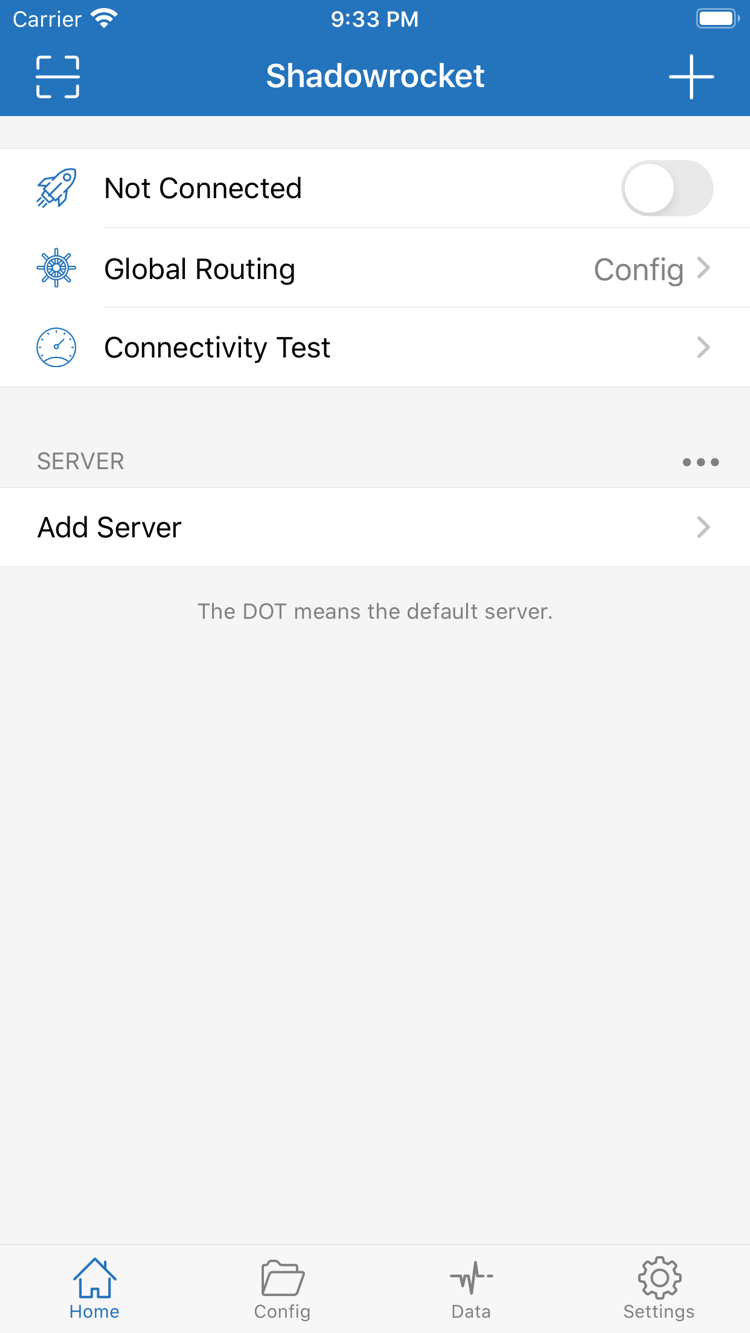
Rule-based routing lets you apply different policies to different requests. In Home > Global Routing, select Config to apply the rules in the active configuration. Proxy and Direct specify different routing behaviors; they are not speed settings. In Config, check the rule order and place specific matches before broader ones. FINAL sets the policy for requests that match no earlier rule. After making changes, send the request again and check which rule and policy matched. An active connection does not guarantee that a request uses PROXY.
- On Demand
- Wi-Fi · SSID
- Cellular
- Domain
On Demand connections
On Demand uses network conditions to determine when to connect; it does not replace server credentials or fix rules. In Settings, find On Demand and first confirm that a manual connection works. Then configure conditions for your Wi-Fi, Cellular, or domain as needed. Add one condition at a time, switch networks, and check whether the expected connection behavior occurs before adding more. If the connection starts again after you disconnect manually, check these triggers too. On Demand controls when to connect, while Global Routing determines how requests are handled; test them separately.
ShadowsocksVMessVLESSTrojanHysteria2WireGuardHTTPSOCKS5
Choose a protocol to match the server details
Multiple protocol support lets you connect to different types of existing servers; it does not mean you can choose any Type. In Add Server, select the protocol used by the server, then check Host, Port, and the relevant authentication fields. Shadowsocks Method, transport settings for some protocols, and TLS parameters each have specific meanings; do not copy one protocol's fields into another. For an existing subscription, import the original details whenever possible and compare each field with its source if an error occurs. Speed and battery use also depend on the network, server, and workload, so the protocol name alone cannot predict performance. See the technical reference for more detail.
Subscribe · format example only
https://example.com/sub?token=xxxx
Use your own existing subscription details. This example address cannot connect.
Importing and updating existing subscriptions
Subscribe reads server entries from an existing subscription and is useful for managing multiple connection details in one place. Before adding one, make sure the link was copied in full, without extra spaces, line breaks, or missing parameters. After importing, check the group and entries, then test one entry. Updating a subscription is different from updating the app: the former reloads subscription contents, while the latter updates the client through the App Store. If an update fails, first check whether your current network can reach the subscription URL, then verify that the subscription is still valid. Subscription links may contain access credentials; do not post the full link publicly when troubleshooting.
[General]
[Rule]
[Host]
[URL Rewrite]
Configuration files and sync boundaries
Configuration files organize global settings, rules, local mappings, and rewrite settings. They serve a different purpose from subscriptions, which provide server entries. In Config, confirm which file is active. Before editing, keep a recoverable copy, then check the syntax and policy names section by section. PROXY in a file still needs to correspond to an available server entry; importing a file alone does not make a connection possible. For iCloud-related settings, first check the account used on each device and the sync status, then verify what appears on the other device. Restoring an App Store purchase only restores access to the app; it does not confirm that configuration has synced.
- Connectivity Test
- Settings · Test Method
- Settings · Diagnostics
- Data
Connectivity Test and Data
Connectivity Test can help assess whether the selected entry is reachable, but its results do not replace testing actual access. In Settings, check Test Method and keep the test method and network conditions consistent when comparing results. If a connection fails, first determine whether the issue is subscription retrieval, connection to the server, or the target request. Then use Diagnostics and request records to narrow it down. Data shows traffic changes; it is not a subscription balance or billing statement. Before sharing diagnostic details, remove server addresses, authentication fields, and subscription parameters. Change one setting at a time so you can identify what affected the result.